
Goals, behinds and rotations: junior AFL scoring in LineUp
A junior footy game day in LineUp: the starters and interchange bench, four quarters on the clock, goals and behinds with the kickers, and the result saved.

In LineUp, a junior AFL game is an oval with every starter in position, an interchange bench that shows how long each child has rested, a clock for each quarter, and a scoreboard that reads goals and behinds the AFL way. Tap Goal 6 or Behind 1, say who kicked it, and LineUp keeps the score as 3.4 (22) and credits the kicker. Make your interchanges with the next swap already suggested, and at the final siren the result, the goal kickers, player of the day and everyone’s minutes are saved to the season. Here is the day, in order.
What does AFL game day look like in LineUp?
Four screens. The fixture, where you can see who is coming. The team-setup screen, where you pick the starters and the bench and put each starter in a position. The live screen, which is the score, the clock, the substitution panel, the oval and the bench. And the game’s summary after the final siren.
An AFL team in LineUp starts at 18 on the field and four quarters of 20 minutes, labelled Q1 to Q4. If your grade plays fewer a side or shorter quarters, both are team settings, so you change them once and every game follows. The oval diagram has the 18 positions: Full Back, Left and Right Back Pocket, Centre Half Back, Left and Right Half Back, Left Wing, Centre, Right Wing, Ruck, Ruck Rover, Rover, Centre Half Forward, Left and Right Half Forward, Full Forward, and Left and Right Forward Pocket.
Before the game
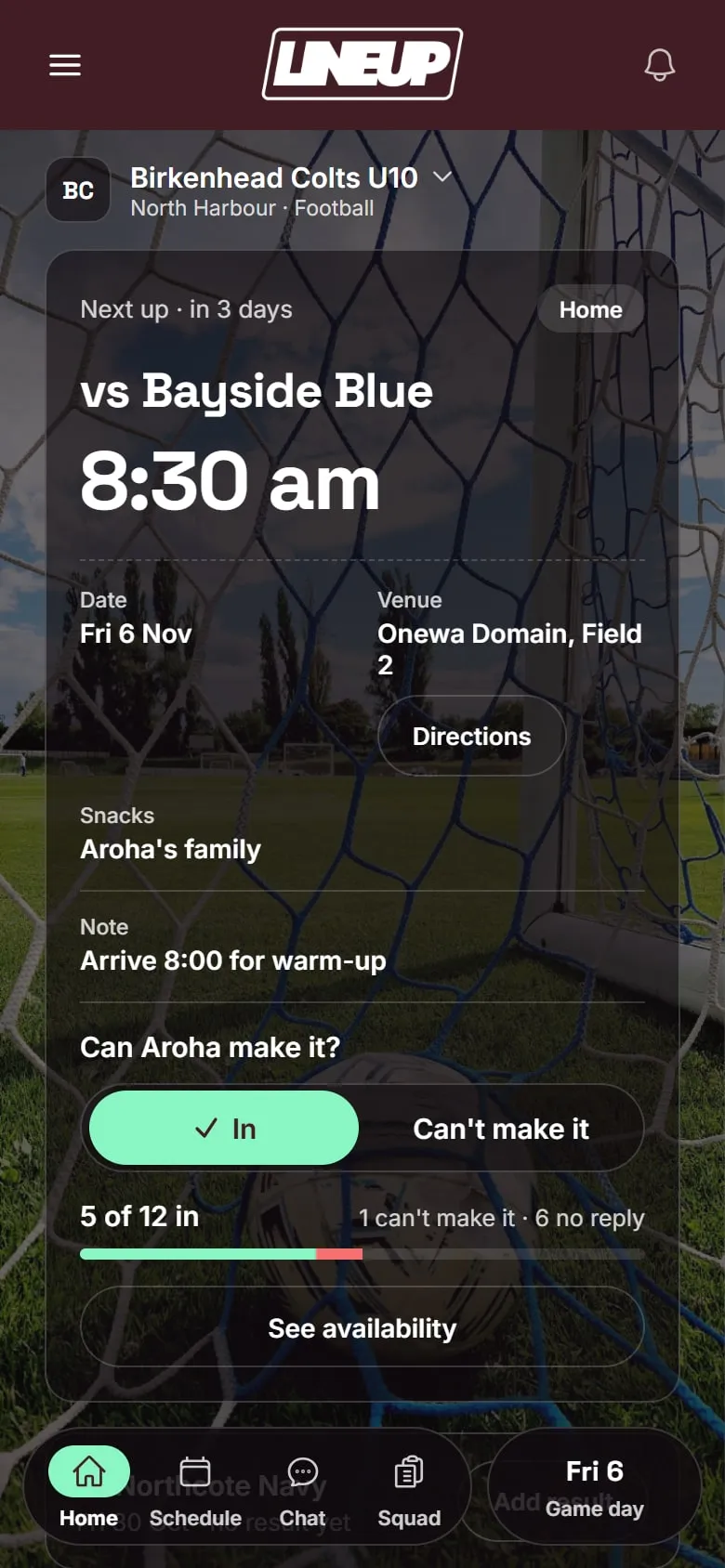
The fixture. You put the season’s games in once, with the venue and the start time, and weekly training repeats to the end of the season. Each game has a map, and families can add it to their calendar. When the league moves your game to a different oval, you change the fixture and every family sees the new ground.
Who’s coming. Parents tap In or Can’t make it on the game. On the evening before, LineUp reminds anyone who has not answered. The availability screen shows the whole squad: in, can’t make it, no reply. You know the night before whether you have a full side and a bench, or whether you need to ring the club about a fill-in.
How families got here. One invite code from you, sent however you like. Parents join with it, and one account can follow several children and teams, which helps the family with one child in the Under 10s and another in the Under 14s. Children do not have accounts. Three steps, start to finish.
Setting the team up for AFL
Ten minutes before the season makes every game day shorter.
- Create the team and choose AFL. Check players on the field, the number of quarters and minutes per quarter against your grade’s rules.
- Choose the scoring rule. Standard gives Goal 6 and Behind 1 buttons and the traditional score. Junior makes each score one point, added with a tap on your side’s score, for grades that do not keep a traditional score.
- Add the roster. Every child’s name once. Parents attach themselves to these entries when they join.
- Add the games from the fixture as the league publishes it, and training once, set to repeat weekly.
- Turn on what your team does. Player of the day, snack duty, both or neither. Set the team colour and add the club logo; the app re-themes to match.
- Share the invite code wherever the parents already read. If another parent is helping run the team, they can manage it with you.
Picking the starters and the bench
Tap Start game day on the fixture. LineUp lists the players who said In. Choose who starts on the ground and who starts on the interchange bench, then give each starter a position: tap a player, pick Full Back or Rover or Left Wing, and the oval places them. A child who said In but is still in the car park can be marked arrived when they get there, and goes onto the bench.
Running the quarters
The clock. Start it with the first bounce. It shows the minutes of the current quarter and keeps counting past the quarter length, so a long quarter is visible rather than silently lost. Tap to pause when play stops for an injury.
Time on and time rested. Every player on the ground has a time on count. Every player on the bench shows time rested and time played. Both update every second, which is the whole reason the whiteboard can stay in the car.
Quarter breaks. Tap End Q1 and the break screen appears with the score, the substitution panel, the oval and the bench. Quarter time, half time and three-quarter time are when most coaches reshuffle, so the break screen is built for a run of changes in a row.
Making an interchange
Footy interchanges happen all game, not just at the breaks, so the substitution panel is there whenever you open it. LineUp has already filled it in: Off, the next player in the rotation, and On, the player on the bench who has rested longest. Underneath, Next subs shows the following two or three swaps.
The rotation is every starting player in a random order. Each comes off once before the cycle starts again, and the order reshuffles each cycle, so the same child is not first to the bench every week. It is only a suggestion. Tap either name to choose someone else, then Make sub. The player going on takes the position of the player coming off, the oval updates, and the player who came off starts resting.
Moving players around the ground. The coach wants the Ruck to have a go up forward. Tap a player on the oval and choose the new position, and the two players swap. That is how a team gives children a run in different parts of the ground across a season without a spreadsheet.
LineUp does not count or cap interchanges against your league’s rules, and it shows parents no verdict on anyone’s minutes. It counts, and it suggests. The coach decides.
Goals and behinds: how scoring works
Under the Standard rule, the live screen has Goal 6 and Behind 1 for each side, and the score reads the AFL way: goals, behinds, and the total in brackets.
- A goal. Tap Goal 6 for your side. LineUp asks “Who kicked the goal?”; pick the player.
- A behind. Tap Behind 1. LineUp asks “Who scored the behind?”; pick the player, or skip the question for a rushed behind or a kick you did not see.
- The other side. The same Goal and Behind buttons sit under their score. Tap the one they kicked; LineUp adds it to their total and asks nothing, because it keeps scorers for your team only.
- A mistake. Undo takes the last score back off the board and off the player it was credited to.
Under the Junior rule, a tap on your side’s score adds one point instead, for grades where the scoreboard is not the point.
A worked example: one Sunday morning
Say your Under 12s play 15 a side, four quarters of 15 minutes, and 19 children said In. You start 15 on the ground with Archie, Mia, Hamish and Zara on the interchange bench.
First quarter. Six minutes in, you open the substitution panel. All four on the bench have rested the same, so LineUp offers Off Cooper (Left Wing), On Archie. Make sub: Archie is now on the Left Wing and Cooper starts resting. Next subs already shows Off Ruby (Left Back Pocket), On Mia, so when the ball goes out of bounds near the bench, that is one more tap.
Then Isla marks 25 metres out, straight in front. Goal. Tap Goal 6, pick Isla, and the board shows 1.0 (6). A few minutes later Charlie’s snap hits the post: Behind 1, pick Charlie, 1.1 (7). Late in the quarter, Leo’s kick sails through the big sticks, but the goal umpire rules it was touched off the boot. Tap Undo, then Behind 1 for Leo: 1.2 (8).
Quarter time. Tap End Q1. The break screen shows the score and the bench: Hamish and Zara at 15:00 rested, Cooper and Ruby with a few minutes’ rest each. The coach wants a bigger change, so you make three subs in a row from the panel’s suggestions. The coach also wants Jack out of the ruck and into the forward line, so you tap Jack on the oval and choose Centre Half Forward; he swaps with Noah, who goes into the ruck. Start Q2.
Half time and three-quarter time. The same thing again. The rotation keeps offering the next starter who has not yet come off, and the bench shows who has rested longest. By three-quarter time, every child who started has had a spell on the bench, and the board reads 3.4 (22) to 2.5 (17). The oranges come out. Nobody has done any sums.
The final quarter. Two more goals, one to each side, and the siren goes at 4.4 (28) to 3.5 (23).
Nothing in this was enforced by the app. The rotation offered a turn each time and you could have declined any of them. What LineUp did was count, so you could see.
Full time
When the final quarter ends, end the game. If your team picks a player of the day, choose them now so the award is saved with the result. LineUp lands you on the game’s summary: the result, the goal kickers and behinds, player of the day, and minutes played for every child. Parents see the same page when they open the game later.
If your team has snack duty turned on, it follows player of the day, so the next family knows it is their turn for the oranges or the lollies. The season record on the team screen adds the result and the scorers.
Then, if your league asks for it, enter the official result, best players and goal kickers in PlayHQ. LineUp does not send anything to the competition, and your LineUp summary has the kickers in front of you while you do.
A few questions managers ask
Can I score both teams’ goal kickers? LineUp asks who kicked the goal for your side. The other side’s goals and behinds go on the board without names.
What if a child gets hurt? Make a sub like any other change. Their time on stops, they start resting, and the rotation carries on.
Can another parent run the game if I’m away? Yes. Another parent can manage the team with you and run game day from their own phone. The season record is the same for both of you.
If you are still choosing an app, Best app for managing a junior AFL team in Australia sets LineUp alongside PlayHQ, Play AFL, Stack Team App and TeamSnap. More about footy is here, and if you look after a club with several junior teams, get in touch.
Questions people ask
- How does LineUp show an AFL score?
- With the Standard scoring rule, the AFL way: goals, then behinds, then the total in brackets. Three goals and four behinds shows as 3.4 (22), because a goal is six points and a behind is one.
- What about a rushed behind, or one nobody saw?
- Tap Behind 1 as usual. When LineUp asks who scored the behind, skip the question and the point goes on the board without being credited to anyone.
- Our grade doesn't keep score. Can we still use it?
- Yes. Set the scoring rule to Junior in team settings and a tap on your side's score adds one point, with no goals and behinds. The clock, the bench and the rotation work the same either way.
- Does LineUp enforce our league's interchange rules?
- No. LineUp does not count or cap interchanges against competition rules. It shows time on and time rested for every child and suggests the next swap; the manager decides.
- Do I still need to enter the result in PlayHQ?
- If your league asks for it, yes. LineUp does not send results to any official competition or ladder, so the official score, best players and goal kickers still go into PlayHQ.