
How LineUp runs a junior football game day: rotation, subs and the clock
A Saturday with a junior football team in LineUp, from the Thursday-night replies to full time: time on, time rested, the rotation and the score.

A junior football game day in LineUp starts on Thursday night, when you can already see who is coming, and ends about a minute after the final whistle, when the result, the scorers, the minutes and player of the day are saved and the next family knows it is their turn for oranges. In between, the app runs the clock, counts time on and time rested for every child, and suggests the next sub so the bench gets its turn without you doing sums on the sideline. This is what that looks like, step by step.
What does football game day look like in LineUp?
Three screens, in order: the fixture before the game, the live screen during it, and the game’s summary after. You will spend most of Saturday on the middle one. It shows the score for both sides with the clock under it, the substitution panel with the next suggested swap, the field with your players in position, and the bench with how long each player has rested. Nothing on it needs more than a glance between phases of play.
LineUp’s football defaults are nine players on the field and two halves of 25 minutes. If your grade plays 7-a-side, or 11-a-side with 30-minute halves, change it once in team settings and every game follows.
Before the game
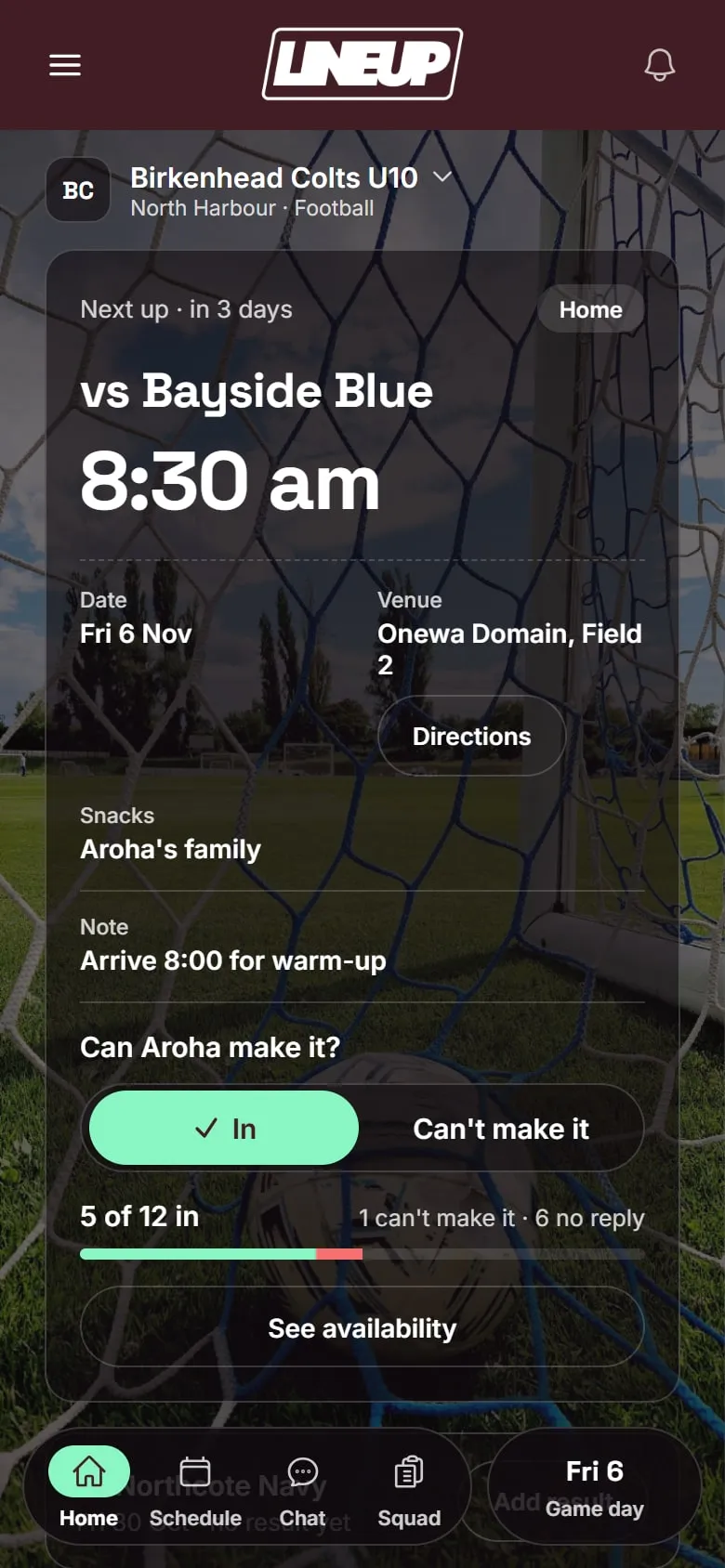
The fixture is already there. You added the season’s games once, with the venue and the time, and weekly training repeated itself to the end of the season. Each game has a map and directions, so “which field?” is answered on the fixture, not in the chat.
By Thursday, you know who is coming. Parents tap In or Can’t make it on the game. On the evening before, LineUp reminds anyone who has not answered. The availability screen lists everyone: who is in, who can’t make it, and who still has not replied. If you are two short, you know on Thursday night, not at 8:40 on Saturday.
Parents joined with one code. When you set the team up, LineUp gave you an invite code. You sent it however you like. Each parent joined with it, added their child’s name to the roster entry you had already made, and that was it. Children do not have accounts. How your team gets on LineUp is three steps.
Setting the season up in ten minutes
If you are reading this before the season rather than during it, the setup is short and worth doing in one sitting.
- Create the team and choose Football. Check the players on the field, the number of halves and the minutes per half against your grade’s rules. Set your team colour and add the club logo if you have it; the app takes on your colours.
- Add the roster. Every child’s name, once. Parents attach themselves to these entries when they join, so you do not need any parent details to start.
- Add the games from the draw as it is published, with venue and kick-off time. Add training once and set it to repeat weekly; it runs to the end of the season.
- Turn on what your team does. Player of the day, snack duty, or neither. A team that does not do player of the day will never be asked to pick one.
- Share the invite code. Paste it into whatever the parents already read. Each parent joins, finds their child on the roster, and is done.
From here the week runs itself: the fixture reminds people the evening before, and you look at the replies on Thursday.
During the game
Picking the team. Tap Start game day on the fixture. You choose who is starting and who is on the bench from the players who said they were coming. If you want the field diagram to show positions, you can set them here, or leave it. Anyone who has not turned up yet can be marked as arrived later.
The clock. Start it when the referee does. Tap to pause at stoppages if you want to; most managers let it run and pause only at half time. The clock shows the minutes of the current half and keeps counting past the period length, so if the referee plays on you can see by how much. End H1 takes you to the break screen, where the score and the same substitution panel sit under the half-time score, because breaks are when most junior subs actually happen.
Time on and time rested. This is the part a notebook never managed. Every player on the field has a bar showing how long they have been on this game. Every player on the bench shows how long they have rested and how long they have played. Both update every second. Scan the list and you know, without working anything out, that Mia has been on for 18 minutes and Leo has been sitting for nine.
The rotation. When you open the substitution panel, LineUp has already filled it in: Off, the next player in the rotation, and On, the player who has rested longest. The rotation is every starting player in a random order; each comes off once before the cycle starts again, and the order reshuffles for the next cycle, so the same child is not first off every week. Under the pair, Next subs shows the following two or three swaps, which is handy at half time when you want to make a batch of changes. Tap either name to choose someone else. Tap Make sub and the swap is done: the field diagram updates, the bench updates, and the player who came off starts resting.
The rotation is a suggestion. LineUp does not score anyone’s game time, does not tell you who deserves to play, and does not show parents a verdict. It shows you the minutes and offers a turn. The decision is the coach’s, as it should be.
Scoring. Tap your side’s score when the ball goes in. LineUp asks who scored, with the players on the field listed first; pick one or dismiss it if you did not see. Tap the other side’s score when they score. Undo takes the last score back off the board, and off the player it was credited to, for the goal the referee disallows.
Half time, step by step. Say you have nine on the field and four on the bench, and the coach wants a batch of changes at the break. Tap End H1. The break screen shows 1–1, the bench with rest times (Leo 25:00, Priya 25:00, Sam 25:00, Noah 25:00, because nobody has been on yet) and the substitution panel with its first suggestion: Off Mia, On Leo. Tap Make sub. The panel reloads with the next pair from the rotation: Off Jack, On Priya. Make sub. Then Off Hana, On Sam. Three taps, three changes, and the field diagram now shows the new nine in position, with Leo, Priya and Sam wearing the positions of the players they replaced. Noah stays on the bench and will be first on at the next change because his rest is longest. If the coach wants Noah on instead of Sam, tap the On name before confirming and pick him. Start H2 when the referee is ready.
Marking someone arrived. A player who said they were coming but was not there at kick-off sits in an “absent” list. When they arrive, tap Mark arrived and pick their name. They join the bench and their rest clock starts.
After the game
Full time. At the end of the second half, LineUp asks you to end the game. If your team picks a player of the day, it asks you to choose one now, so the award rides along with the result. Then it lands you on the game’s summary.
The summary. The result, the scorers, player of the day, and minutes played for every player who was there. This is the same page a parent sees when they open the game later. It is saved to the season straight away.
Snack duty. If your team has oranges or lollies turned on, the roster for them follows player of the day, so the next family knows it is their turn without anyone keeping a list.
The season. On the team screen, the season so far adds up: the record, the goals, the players of the day. Minutes played across the season are there for the manager too, as a quiet hint, with no target and no colour-coding.
A few things managers ask
Does the clock run if I lock my phone? Yes. The game keeps counting in the background, and if the app is closed mid-game it resumes where it was.
Can I run the game with the phone in my pocket? Mostly. You need it for subs and scores. Many managers set the phone on the bench with the live screen open and pick it up for changes.
What about a player who gets hurt? Sub them off like any other change and their minutes stop. They go to the bench, so if they cannot go back on, tap the On name when the rotation offers them and pick someone else.
If you are still deciding on an app, Best app for managing a junior football team in NZ and Australia sets LineUp alongside Dribl, Squadi, Sporty, Stack Team App and Friendly Manager. Everything we have written about football is here. And if you run a club with a few football teams rather than one, get in touch.
Questions people ask
- How many substitutes can LineUp track?
- As many as you have. Every player at the game is either on the field, where their time on counts up, or on the bench, where their time rested counts up. The list grows with your squad.
- Does LineUp decide who comes off?
- It suggests. The rotation puts every starting player in a random order and offers the next one each time you open a sub, with the longest-rested player to come on. You can change either name before you confirm, and the suggestion is never a judgement about anyone.
- What if I forget to start the clock, or stop it late?
- The clock runs from when you start the game and pauses with a tap, and it keeps counting past the period length so you can see the overrun. Minutes are only ever a guide for you; nothing about them is shown to parents as a verdict.
- Can the other manager run game day while I am away?
- Yes. A second parent can manage the team, and whoever is on the sideline runs the game from their own phone. The season record is the same for both of you.
- What do parents see during the game?
- Parents see the fixture, the venue and their own reply. The live screen is the manager's. After the game, the result, the scorers and player of the day are on the game's page for everyone on the team.